

You log into your Meta Business Suite and see the red banner: “Your ad account has been disabled.” No warning. No clear reason.
Just a sudden stop to campaigns that were driving leads, sales, and revenue. If you run a business, a banned ad account feels like a digital heart attack.
You lose access to your audiences, your ad spend, and your ability to generate new customers. Frustration turns to panic when you try to appeal and hit a wall of automated responses or silence.
Meta usually disables ad accounts because of policy violations, suspicious payment activity, identity verification failures, account security concerns, or attempts to bypass advertising policies.
According to Meta’s transparency reports, millions of advertising assets are reviewed monthly through automated systems, with a significant percentage requiring secondary review by human teams. This means false positive account bans are more common than many business owners realize.
At NFlow, we have helped dozens of businesses regain their meta ad accounts within hours instead of weeks. This guide walks you through the real reasons behind bans, step by step appeal tactics that actually work, and how to prevent future suspensions.
1. The Real Reasons Your Meta Ads Account Got Banned
Meta enforces its Advertising Policies strictly. But the enforcement is often inconsistent and triggered by subtle violations you might not notice. Let us break down the most common causes.
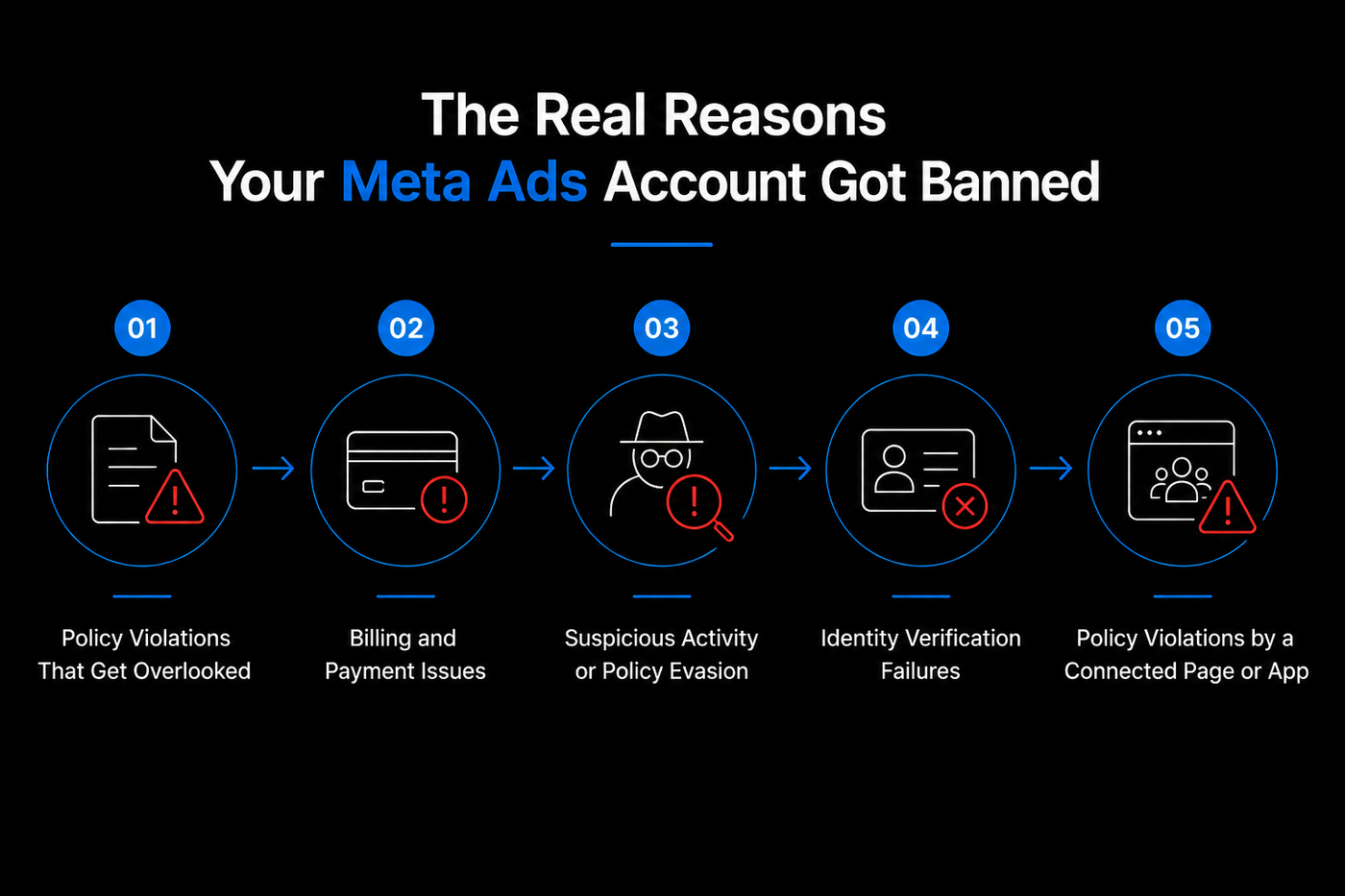
Policy Violations That Get Overlooked
Many account owners think they broke no rules. But Meta scans every element: landing pages, ad copy, images, targeting options, and even the website’s privacy policy.
Common triggers:
- Misleading claims – Phrases like “lose 10 pounds in 3 days” or “guaranteed income” without proper disclaimers.
- Prohibited content – Healthcare, finance, or social issues ads that lack pre approval.
- Landing page mismatch – Your ad promises “50% off” but the page shows full price.
- Broken links or non functional pages – Meta considers this a poor user experience.
- Unsubstantiated claims – Testimonials without evidence, before/after images without context.
Difference Between Ad Account Disabled, Business Manager Restricted, and Personal Profile Restricted
Most users confuse these three. Your ad account disabled means only that specific ad account cannot run ads. Your Business Manager restricted means all ad accounts under that Business Manager are frozen. Your personal profile restricted means you cannot access any Meta tools at all.
Check which one applies to you. The fix is different for each. If your Business Manager is restricted, you cannot appeal through a simple ad account form. You must go through Business Manager Support.
Billing and Payment Issues
Your ad account can be suspended if Meta detects unusual billing activity. This includes:
- Using a prepaid card from a country that doesn’t match your account location.
- Multiple failed payment attempts in a short time.
- Adding a payment method linked to another suspended account.
- Virtual credit cards that are declined during the payment processing cycle.
If your ad account is disabled after a card decline, check your payment method settings first. A payment mismatch can trigger an automated suspension.
Suspicious Activity or Policy Evasion
Meta tracks IP addresses, device fingerprints, and browser patterns. If you:
- Log in from a VPN in another country.
- Create multiple ad accounts from the same Business Manager.
- Use black hat techniques like “cloaking” (serving different content to humans vs. Meta’s review bots).
- Rapidly scale spending from $10 per day to $5000 per day within hours.
Any of these actions can flag your account for manual review and automatic disablement.
What Does “Circumventing Systems” Mean On Meta?
This violation has enormous search demand because it is the hardest to overturn. Meta defines circumventing systems as any attempt to bypass their enforcement. That includes creating a duplicate ad account after a ban, using a different payment method from a blocked account, or modifying your business name slightly to avoid detection.
If your ban notice says “circumventing systems,” your standard appeal will likely fail. This is where professional intervention becomes almost mandatory.
We have overturned multiple circumventing systems bans by proving that the new account was legitimate and unrelated to the previous violation.
How to Fix Circumventing Systems Violation
The first step is to stop using any accounts that may be linked. Then gather proof that your current business is separate from the banned entity. This includes new business registration, different ownership, and clean billing details.
Your appeal must show that you are not trying to bypass enforcement. A circumventing systems false positive can happen when Meta incorrectly associates your new account with an old one.
Identity Verification Failures
In early 2025, Meta increased its verification requirements. If you:
- Submitted a business document that doesn’t match your Business Manager name.
- Failed to complete the identity confirmation step within the given window.
- Used a personal profile that isn’t linked to a real person (no photo, no friends, new account).
Your ad account can be locked until you pass verification. Meta now requires document verification for many accounts, including a government issued ID and proof of business ownership.
Meta Account Disabled After Business Verification
Some users report their account getting disabled immediately after submitting business verification documents. This usually happens because the documents do not match the information on file, or because the system flags a discrepancy between the business name and the Business Manager name.
If this happens, you need to submit a review request with corrected documents. Do not resubmit the same files.
Policy Violations by a Connected Page or App
Your ad account is tied to your Facebook Page, Instagram account, or app. If any of those violates Meta’s Community Standards or Page terms (even outside of ads), your ad account can be banned too.
For example: a Page that posts offensive content or runs a giveaway that violates promotion rules can cause a cascading suspension on all associated ad accounts.
Why Was My Ad Account Disabled Without Reason?
Many business owners feel their account was disabled without any clear cause. In most cases, there is a reason. It could be a minor policy violation that you missed, a billing issue, or an automated flag triggered by unusual activity.
The key is to check your Account Quality page in Business Settings. If nothing appears there, the issue may be related to a connected Page or a security restriction from suspicious login activity.
Why Are Meta Account Bans Increasing in 2026?
Many advertisers ask why bans are more frequent now. Three factors drive this trend.
AI Moderation and Automated Enforcement
Meta relies on machine learning models to scan ads, landing pages, and account behavior. These systems catch more violations than human reviewers, but they also generate false positives.
A common example: an ad for a natural supplement flagged as a pharmaceutical product because the AI matched keywords incorrectly. This automated account suspension is happening to thousands of accounts every month.
Stricter Identity Verification
Meta now demands stronger proof of identity for any account that spends over a certain threshold. The business verification process requires a legal business entity, tax registration certificate, and address verification.
If you miss the verification window, your account is locked until you comply.
Business Verification Requirements
In 2026, Meta expanded its Business Verification program to cover all active ad accounts. You must complete domain verification and ownership verification to keep running ads. Accounts that fail this step within 30 days are restricted.
This change alone has caused a wave of disabled advertising accounts from businesses that did not update their information.
These increasing requirements mean that even compliant businesses face temporary restrictions. Understanding the system and keeping your Meta Business Portfolio up to date is essential.
Meta Account Ban Statistics
Data supports the scale of the problem. According to Meta’s Transparency Center, over 10 million pieces of advertising content are rejected or flagged every month. A separate report noted that more than 2 million ad accounts are disabled per year for policy violations, with a substantial portion later reinstated after a manual review request.
These numbers show that bans are not rare. If you experience one, you are not alone. And many of those bans are reversible with the right appeal strategy.
2. What To Do Immediately After Your Account Gets Banned
Before you rush to the appeal form, take these three steps. They will dramatically improve your chances of reinstatement.
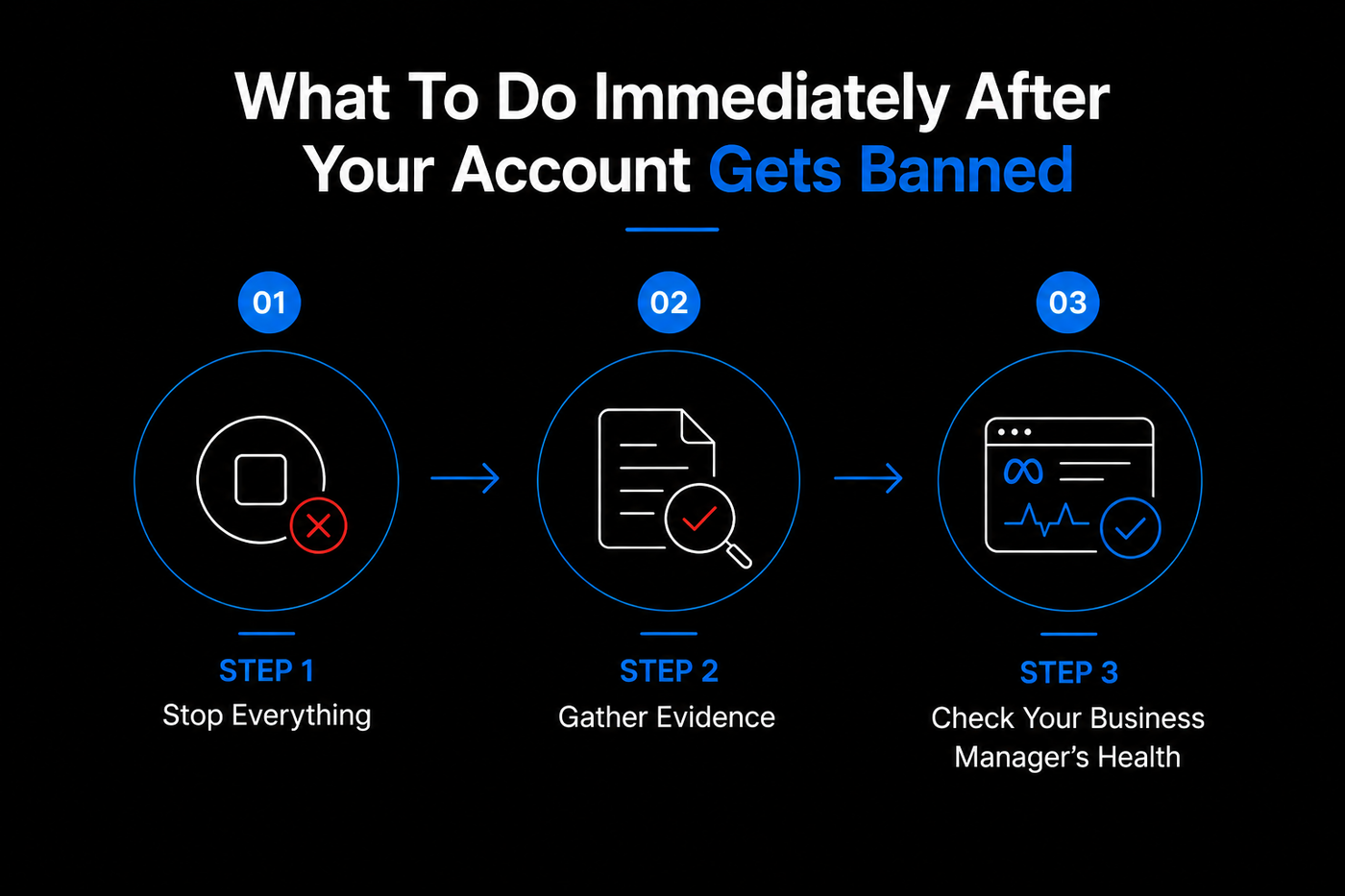
Step 1: Stop Everything
Do not create a new ad account. Do not use a friend’s account. Do not try to circumvent the ban. Meta’s systems detect related accounts through shared payment methods, IP addresses, and device IDs. Creating a new account will get that suspended too, and make the original appeal harder.
Step 2: Gather Evidence
You need to build a case that shows your business is legitimate and your ads were policy compliant. Collect:
- Screenshots of your ads (including ad copy, images, targeting settings, and landing page URLs).
- A screenshot of the ban notification (shows the exact policy reference).
- Proof of business registration (business license, tax ID, D&B number).
- A dated screenshot of your website’s privacy policy, terms of service, and contact page.
- Any previous approval confirmations from Meta (if you appealed before).
What Documents Does Meta Require?
Meta’s appeals team typically asks for:
- The government issued a photo ID of the Business Manager admin.
- Business license or registration certificate.
- Utility bill or bank statement matching the business address.
- Clear screenshots of your ads and landing pages.
- A written explanation of your business model.
Having these ready before you appeal reduces delays. If you don’t have a business license, Meta may accept a D&B number or tax registration. Completing company registration certificate submission speeds up the process.
Step 3: Check Your Business Manager’s Health
Visit Business Settings > Security Center > Account Quality. You may see warnings or violations that led to the ban. Note the policy reference number. Sometimes the ban is limited to a specific ad account, not your entire Business Manager. Isolate the problem.
Check your account quality issue list to understand what triggered the enforcement.
How Many Appeals Should You Submit?
Many users think flooding Meta with appeals works. It does not. Submitting multiple identical appeals can mark you as spam and delay a human review. Submit one appeal through the standard process.
If you receive no response within 48 hours, escalate through Business Manager Support or chat. Do not resubmit the same appeal.
3. How To Appeal a Meta Ads Account Ban (Step by Step)
Meta offers multiple appeal channels. The trick is to use the right one and craft your message with precision.
The Standard Appeal Process
- Go to Business Settings > Account Quality > Ad Accounts.
- Click “View Details” next to the disabled account.
- Click “Request Review” or “Appeal”.
- Fill out the form with your case.
How to Write a Meta Ad Account Appeal Letter (Template)
Your appeal letter needs to be clear, factual, and respectful. Here is a structure that works:
- Subject line: Appeal for disabled ad account [Account ID]
- Opening: “I am writing to appeal the disablement of my ad account. I believe this was a mistake and I am ready to provide any documentation needed.”
- Body: State your understanding of the policy. Reference the specific violation they flagged. Explain why your ad was compliant or describe the corrective steps you have taken. Mention your account history (time active, total spend, relevance scores).
- Close: “I request a manual review by a human specialist. I have attached evidence to support my case. Thank you for your time.”
What to write in the appeal field (if no template provided):
- Acknowledge the violation – Even if you disagree, show you understand the policy. Example: “I understand that Meta prohibits misleading claims. However, my ad included a clear disclaimer in the body copy that states results not guaranteed.”
- Provide specific evidence – Reference the screenshots you collected. “Attached you will find a screenshot of my landing page showing the exact offer from the ad, proof of my business license on file, and the privacy policy page.”
- Explain your business history – “My business has been active on Meta for 3 years with zero policy warnings. Our account has spent over $50,000 in ads and consistently received high relevance scores.”
- Request a human review – “I kindly request a manual review by a human specialist because the automated system may have flagged my account incorrectly.”
How Long Does Meta Take To Review An Appeal?
Standard appeals usually get a response within 48 hours to 2 weeks depending on the complexity. If your account was disabled for a clear violation like a billing issue, it may be resolved in 24 hours. If it involves a policy dispute or circumventing systems, it can take longer.
If you hear nothing after 48 hours, escalate. Do not just wait. Every day without ads means lost revenue.
What If My Meta Appeal Takes Too Long?
If your appeal has been under review for more than 7 days, it is time to escalate. Go to Business Manager Support and create a new support ticket.
In the description, include the case reference number from your original appeal and write: “My appeal has been under review for [X] days with no response. This is causing significant business loss. Please escalate to a senior review team.”
If your Meta appeal is taking too long, you can also reach out via the Meta Business Help Center chat. High spend accounts often get faster responses through chat.
The Business Manager Emergency Support Route
If the standard appeal fails or you get no response within 48 hours, escalate through Business Manager Support.
- Go to Business Settings > Help > Support Inbox.
- Click “Create a Support Ticket”.
- Choose “Account Disabled” as the issue.
- In the description, add your appeal text plus a note: “I have already submitted an appeal through the standard process and received no response. This is causing significant revenue loss for my business. Please prioritize a human review.”
Pro tip: Attach your evidence as PDF files. Use filenames like “AdScreenshot_Proof.pdf” and “BusinessLicense.pdf”. Including your case reference number from the original appeal helps connect the records.
The Meta Business Help Center Chat
Sometimes the chat option appears only for accounts that have spent a certain amount (often $1,000+ in the last 30 days). If you see the chat button, use it.
Be polite and concise. Explain your situation in 3 sentences, then ask: “Can you escalate my case to the appeals team? I have evidence ready.”
Facebook Ads Representative Outreach
For larger spenders (over $10,000 per month), a dedicated rep may be assigned. Contact them directly via email or phone. If you don’t have a rep, you can try the Meta for Business Facebook page or Twitter/X support at @MetaBusiness. Public tweets often get faster responses.
If you need to talk to a human at Meta support, the chat option is your best bet. Escalate if the chat agent cannot resolve your issue.
Can A Permanently Disabled Ad Account Be Recovered?
Yes, but it depends on the reason. If the permanent ban was for a severe violation like illegal products or fraud, recovery is almost impossible. However, many permanent bans are actually overridden by automated systems.
We have recovered accounts that were marked “permanently disabled” due to identity verification failures or policy misinterpretations.
If your account is permanently disabled, do not waste time with standard appeals. Go straight to Business Manager Support or work with an agency that has direct escalation contacts.
Can I Create a New Ad Account After a Ban?
The answer is: not safely. If your Business Manager or personal profile is flagged, any new ad account you create under the same identity will likely be detected and disabled for circumventing systems.
Wait until your original account is reinstated, or work with a professional to clean your association. Creating a new account before the ban is resolved often makes reinstatement harder.
4. How To Prevent Future Bans
Once your account is reinstated, you must change your practices. A repeat ban can result in a permanent suspension that is nearly impossible to reverse.
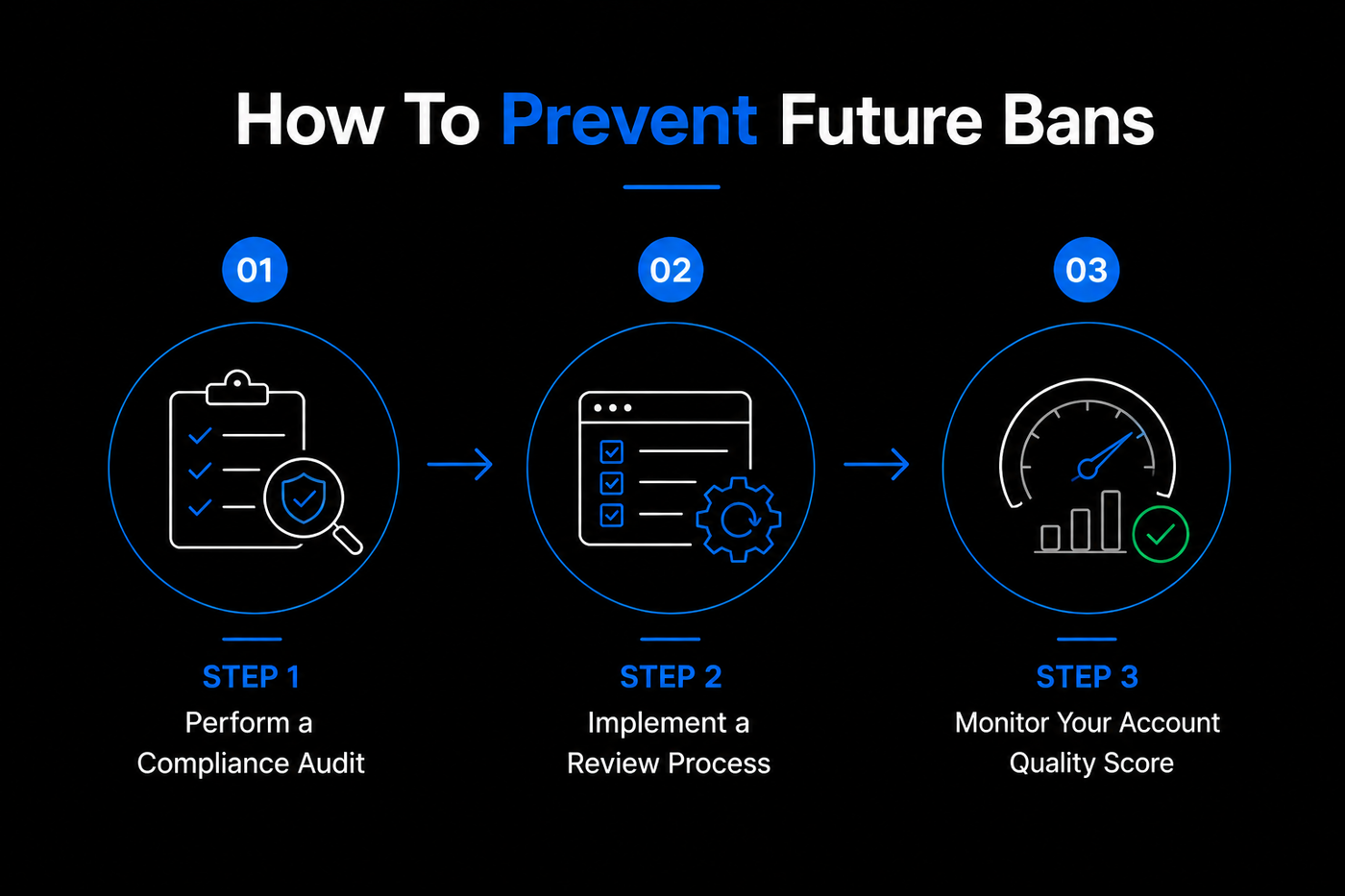
Perform a Compliance Audit
Review every ad, landing page, and targeting option against Meta’s current policies. Policies update frequently. Check the Meta Advertising Standards page monthly.
Key areas to audit:
- Landing page speed and mobile friendliness.
- Privacy policy and cookie consent (required for retargeting).
- Ad copy claims – remove “guarantee”, “cure”, “proven” unless you have scientific evidence.
- Image text overlay (if more than 20% text, your ad may be suppressed).
Implement a Review Process
Before publishing any ad, have a second set of eyes check for policy violations. Create a checklist:
- Does the ad comply with prohibited content rules?
- Does the landing page match the ad offer?
- Is the targeting objective and compliant?
- Are all disclaimers present (e.g., for financial, health, social issues)?
Monitor Your Account Quality Score
In Business Manager > Account Quality, you can see warnings before a ban. Address any at risk items immediately. A single warning flag can escalate to a full account disablement if left unattended.
Use Separate Ad Accounts for Different Campaign Types
If you run high risk verticals (e.g., healthcare advertising, financial services advertising, ecommerce ad account), use a separate ad account for each. This way, if one account gets flagged, your others stay active.
Keep Your Business Information Current
Meta now enforces regular verification cycles. Ensure your business documentation, address, and domain verification are always current. A mismatch between your Business Manager name and your business license is a common trigger for advertising restrictions.
5. When To Hire a Professional Agency
Many business owners spend hours or days trying to appeal a ban. They write multiple appeals, get automated rejections, and watch their revenue disappear.
We have direct relationships with Meta’s support escalations. We know the exact language that triggers a human review.
What we do for you:
- Analyze the ban reason and build a customized appeal package.
- Craft an appeal letter that includes legal references and business documentation.
- Communicate with Meta support on your behalf, following up hourly if needed.
- Implement preventive measures so you never get banned again.
Real client example: A skincare brand had their account banned for “sexual content” when their ad showed a woman applying face cream. We appealed within 4 hours, highlighting the educational nature of the content, and the account was reinstated the same day.
We also help with broader Meta policy compliance consulting. Whether you need a Meta account audit, guidance on restricted advertising access, or full account reinstatement service, we handle the entire process.
Get a Free Account Audit and Appeal Strategy
A banned ad account does not have to end your Meta Ads growth. The difference between a permanent loss and a quick reinstatement is knowing the system.
Contact NFlow today for a free Meta Account Recovery Assessment.
We will review your account, identify the root cause of the ban, and give you a clear appeal action plan. If you want us to handle the entire process, we can do that too.