

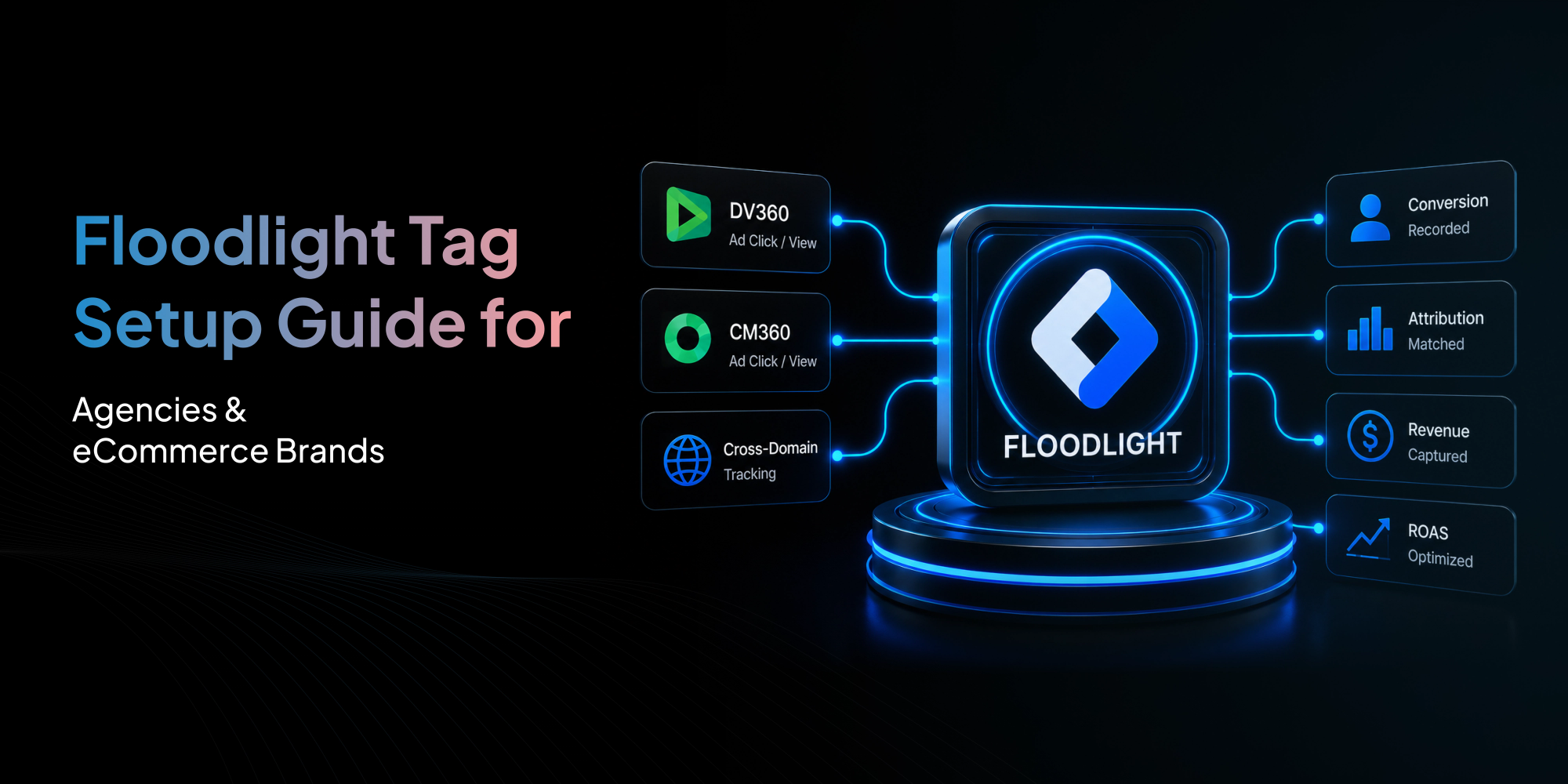
Floodlight tags directly influence attribution accuracy, bidding optimization, and reported ROAS across DV360 and Campaign Manager 360. Small implementation mistakes often create reporting gaps that remain undetected for months.
This guide exposes the hidden failures and builds a complete measurement framework from planning through server side tracking. Every section includes the exact technical details a Google Marketing Platform specialist uses to diagnose and fix the system.
What Is a Floodlight Tag?
A Floodlight tag is a Campaign Manager 360 tracking pixel used to measure conversions, revenue, and user actions after someone interacts with a DV360 or CM360 ad campaign.
Unlike basic conversion pixels, Floodlight tags can pass rich data back to Google: order IDs, revenue amounts, product categories, customer types, and more. This data powers attribution models, dynamic remarketing audiences, and campaign optimization inside DV360 and CM360.
Every Floodlight tag belongs to a specific advertiser account and activity group. When implemented correctly, it provides the most accurate conversion measurement available in the Google Marketing Platform ecosystem.
How Floodlight Attribution Works
Floodlight attribution connects ad interactions from DV360 and Campaign Manager 360 with actual conversions on your website.
When a user clicks or views an ad, Google stores identifiers such as the dclid parameter and Floodlight cookies. If the user later completes a purchase, lead form, or another tracked action, the Floodlight tag fires and sends the conversion data back to CM360.
CM360 then matches the conversion to the original ad interaction and applies the selected attribution model.
Basic Attribution Flow
Ad Click or Impression → User Visits Website → Floodlight Tag Fires on Conversion → CM360 Matches User Session → Conversion Credit Applied
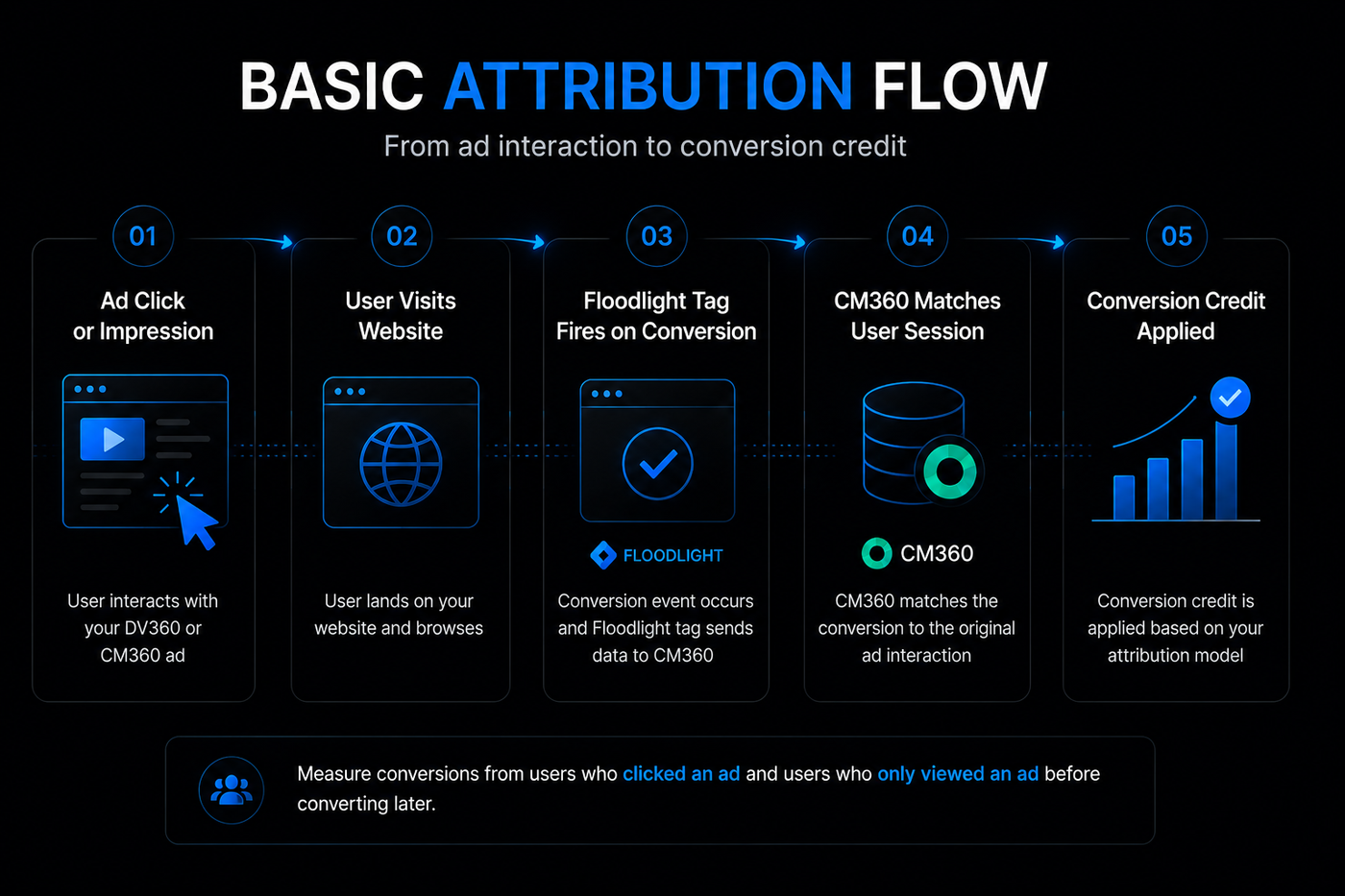
This allows advertisers to measure conversions from users who clicked an ad and users who only viewed an ad before converting later.
Understanding How Floodlight Works in Campaign Manager 360
Campaign Manager 360 organizes tracking through a strict hierarchy.
Advertiser is the top level container for each brand or division. Inside each advertiser, Activity Groups categorize related conversions such as Shopping, Lead Generation, or Retention. Each group contains Activities, which are the actual tags that fire on conversion events.
There are two types of Floodlight activities:
-
Counter tags count actions like sign ups, video views, or button clicks. They pass a count value but no revenue.
-
Sales tags capture revenue, quantity, and item data. They power ROAS reporting and dynamic attribution.
Every tag includes a global site tag that sets first party cookies and enables cross environment attribution. When a user clicks a DV360 ad and later converts on a different domain, the global site tag and the dclid parameter connect the events.
Understanding this hierarchy is essential. If you place a purchase tag in the wrong activity group, your reporting buckets break. If you use the wrong activity ID, data goes to a different advertiser entirely.
How to Set Up Floodlight Tags in Google Tag Manager
Google Tag Manager (GTM) is the recommended delivery method for most implementations. It gives you version control, debugging, and dynamic variable injection without hardcoding.

Step by step workflow:
-
Create a Tag of type "Custom HTML" or use the Floodlight template if available.
-
Paste the Floodlight snippet from CM360.
-
Replace static values with GTM variables.
Essential variables to create:
-
{{Transaction ID}} – pulls a unique order number from dataLayer.
-
{{Transaction Revenue}} – pulls total order value.
-
{{Transaction Quantity}} – pulls item count.
-
{{Transaction Currency}} – pulls ISO code.
Trigger configuration:
For Shopify, use a trigger that fires on the "thank you" page path /checkouts/thank_you and matches a custom event purchase. For Magento, watch for a dataLayer push with event: purchase.
For WooCommerce, the standard woocommerce_checkout_order_processed event fires the dataLayer push.
For single page applications (SPA), use a history change trigger combined with a custom event listener. The tag must fire only when the URL contains the confirmation path and the dataLayer has a transaction object.
Always validate in GTM preview mode before publishing. Check that the Floodlight tag fires exactly once per transaction.
How to Pass Revenue Values into Floodlight Sales Tags
A Floodlight sales tag without a dynamic cost parameter is useless for attribution. Hardcoding cost=0 or cost=10 destroys ROAS calculations.
Map transaction_id to the ord parameter. Map value to cost. Map quantity to qty.
Transaction deduplication: The ord parameter is required for sales tags. Without it, a page refresh or payment gateway redirect that reinitializes the tag will create duplicate conversions. When ord is present, CM360 checks for an existing conversion with the same ID and ignores duplicates.
Currency handling: If you process orders in multiple currencies, pass the currency variable into a custom Floodlight parameter or use the tag's standard currency field. Google processes conversion values in the advertiser's default currency. Mismatches cause revenue discrepancies.
Using Custom Floodlight Variables for Advanced Reporting
Standard Floodlight parameters give you conversion count and revenue. Custom Floodlight variables unlock granular segmentation.
Examples of high value custom variables:
-
Customer Type: new vs returning
-
Subscription Status: active, expired, trial
-
Product Category: electronics, apparel, home
-
Profit Margin Tier: high, medium, low
-
Lifetime Value Segment: tier1, tier2, tier3
How to implement: In the Floodlight tag, append custom parameters after the standard snippet.
Then in CM360, create custom Floodlight variables under Floodlight > Variables. Name them u1 Segment, u2 Category, u3 Margin. Now you can segment reports by these dimensions.
Advanced brands use custom variables to build audiences for DV360. For example, create a retargeting list of "high margin apparel buyers" who spent over $200. Feed that audience back into campaign targeting. This level of precision is impossible with standard conversion tracking.
How to Configure Floodlight Cross Domain Tracking
When a user clicks an ad on domainA.com, lands on domainB.com, and checks out on domainC.com, the tracking session must survive across all three.
The challenge: Browsers isolate cookies by domain. Without proper linkage, the checkout on domainC appears as a direct visit with no ad attribution.
Solution configuration:
In GTM, enable the Cross Domain Linking tag. This appends a linker parameter (_gl) to outbound links pointing to your other domains. The receiving domain must have a GTM container with the linker parameter decoder.
Example: When the user clicks a "checkout" button on your main site that goes to checkout.mystore.com, GTM adds ?gl=xxxx to the URL. The checkout domain's GTM reads this parameter and reestablishes the session.
Additional steps:
-
In CM360, add all owned domains to the Domains and Sites list for the advertiser.
-
Exclude your own domains from referral traffic in Google Ads and GA4.
-
Test the end to end flow using Tag Assistant to confirm sessions persist.
Common failure: If the payment gateway uses a third party hosted page (Stripe Checkout, PayPal), the linker parameter may be stripped. In that case, use a server side redirect to add the parameter back, or pass the gclid through URL parameters manually.
Validating and Testing Your Floodlight Implementation
Silent failures are the most dangerous. A tag might fire but pass zero revenue. Or fire twice, inflating conversion count. Here is the validation protocol.
Validation steps:
-
In GTM preview, trigger the conversion event. Confirm the Floodlight tag appears in the summary with correct values.
-
In the DevTools Network tab, filter by ad.doubleclick.net. Find the pixel request. Examine the query string parameters:
-
ord must be a unique value (not 1 or empty)
-
cost must be the exact revenue (check for decimal precision)
-
type must be sale for purchase tags
-
activity must match the CM360 activity ID
-
In CM360, go to Floodlight > Activity Reports. Run a quick report for the test transaction ID. It should appear within minutes.
-
Repeat the test on a second browser or private window to confirm no caching issues.
Red flags that indicate failure:
-
The cost parameter is 0 for a purchase.
-
The ord parameter is 1 on every transaction.
-
The tag fires on the homepage or category pages.
-
The tag fires multiple times per page load.
If any red flag appears, do not publish. Fix the variable mapping or trigger.
Common Floodlight Configuration Mistakes

Mistake 1: Duplicate tag firing. Occurs when a single conversion event triggers the tag twice. Causes inflated conversion count and diluted ROAS. Fix: add a trigger exclusion for page path changes or use a one time flag in the dataLayer.
Mistake 2: Incorrect activity setup. Using a Counter tag when you need a Sales tag, or vice versa. Counter tags cannot pass revenue. Sales tags without revenue waste the cost field.
Mistake 3: Missing revenue parameters. Many GTM implementations forget to map {{Transaction Revenue}} to the cost parameter. The tag fires but reports $0 revenue for every sale.
Mistake 4: Inconsistent transaction IDs. Some platforms generate order IDs with hyphens or alphanumeric strings. Others use sequential integers. Ensure your ord value matches the exact format from the backend.
Mistake 5: Broken consent handling. If a user rejects cookies, the tag should either fire without cookies (using dc_natural=1) or not fire at all. Many implementations fire the tag with consent blocked and pass no ord, causing partial data.
Mistake 6: Hardcoded tags. Some developers paste the Floodlight snippet with static values like cost=0 or qty=1. This defeats the purpose of dynamic tracking. Every value must come from the dataLayer or server response.
Each mistake creates a reporting impact that compounds over months. A 10% underreporting error on a $1 million monthly ad spend campaign means $100,000 of questionable optimization per month.
Server Side Floodlight Tracking and Modern Attribution
Browser restrictions are tightening. Safari ITP, Firefox Enhanced Tracking Protection, and Chrome Privacy Sandbox reduce the reliability of client side cookies.
Server side tagging solves this problem. Instead of the browser sending the Floodlight pixel directly to Google, the pixel request routes through a GTM Server Side container hosted on your own domain.
Benefits:
-
First party domain improves cookie persistence.
-
Server side requests bypass ad blockers.
-
You control when and what data is sent, enabling better privacy compliance.
-
Attribution quality improves because the session signal is stronger.
Implementation approach:
-
Deploy GTM Server Side on Google Cloud or another provider.
-
Create a client that intercepts the Floodlight request from the web container.
-
Forward the request to CM360 with additional parameters from your server (order verification, IP address for geo, user agent).
-
Configure consent checks server side before sending.
Server side Floodlight is not for every scenario. But for enterprises spending over $500,000 per month on DV360, the improvement in measured ROAS often exceeds 15% because previously blocked conversions become visible.
Consent Mode v2 for Floodlight
Google Consent Mode v2 is now mandatory for advertisers targeting users in the European Economic Area. Without proper implementation, Floodlight tags may stop firing entirely for consenting users.
How it works:
Consent Mode changes the behavior of Google tags based on the user's consent choices.
-
ad_storage: granted – Floodlight cookies are set.
-
ad_storage: denied – Floodlight fires without cookies. Conversions are modeled by Google using machine learning.
-
analytics_storage: denied – Similar treatment for analytics tags.
Implementation steps:
-
Integrate a CMP (Consent Management Platform) that supports Consent Mode v2.
-
Update your GTM container to use the consent configuration.
-
For default consent, use denied for both ad_storage and analytics_storage.
-
Update consent signals when the user interacts with the banner.
Regional compliance: Some regions require explicit opt in, others allow implied consent. Your consent logic must adapt per region using geolocation or a country cookie.
Impact of incorrect implementation: If consent is always denied and you do not enable modeling, you lose visibility into a large percentage of conversions. Attribution becomes blind to opted out users, skewing campaign performance toward non compliant visitors.
Enhanced Conversions and First Party Data Matching
Enhanced Conversions for Floodlight lets you send hashed first party customer data to Google to improve attribution accuracy when cookies are unavailable.
How it works: When a user completes a purchase, you send a SHA 256 hash of their email address or phone number to Google. Google matches that hash against Google account data to attribute the conversion back to an ad impression or click.
Implementation required elements:
-
Collect customer email or phone with explicit consent.
-
Hash the data using SHA 256 before passing to Floodlight.
-
Use the eid parameter (enhanced ID) in the Floodlight tag.
Example tag addition:
Consent requirement: Do not send hashed data without user consent for measurement and personalization. Violation of Google's policies can lead to account suspension.
Why it matters: In a privacy focused environment, cookie based attribution may capture only 40% of conversions. Enhanced Conversions can recover attribution for up to 70% of the remaining unmatched conversions.
Floodlight vs Meta CAPI vs Server Side GA4 vs SA360 Tracking

Enterprise brands rarely rely on a single attribution platform. Most mature measurement stacks combine Floodlight, Meta CAPI, GA4 server side tracking, and SA360 depending on campaign objectives and reporting requirements.
Our team builds hybrid tracking setups using any above platforms for 70 percent of enterprise clients, combining the strengths of each tool.
Stop Losing Revenue to Broken Tracking
Inaccurate Floodlight data is costing your agency or ecommerce brand money every day. We offer a complete Floodlight tracking audit covering CM360 configuration, GTM implementation, server side tracking, consent mode, enhanced conversions, and revenue validation. This audit will identify every gap in your current setup that is skewing your campaign data.
Contact our tracking setup service today for a free, no obligation Floodlight audit. We guarantee we will find at least 3 critical tracking gaps in your current setup, or the audit is free. Resolve tracking issues now before inaccurate data impacts your campaign performance further. Get a quote for full Floodlight setup service in 15 minutes or less.